If you have ever thought, “I should really have a website”… and then immediately felt overwhelmed, you are not alone.
Teachers build websites for all kinds of reasons: a classroom hub for families, a digital portfolio, a spot to share resources, a blog to support other educators, or a simple home base that links everything in one place. The good news is you do not need to code. You do not need to be “techy.” You just need a clear plan and a few teacher-friendly tools.
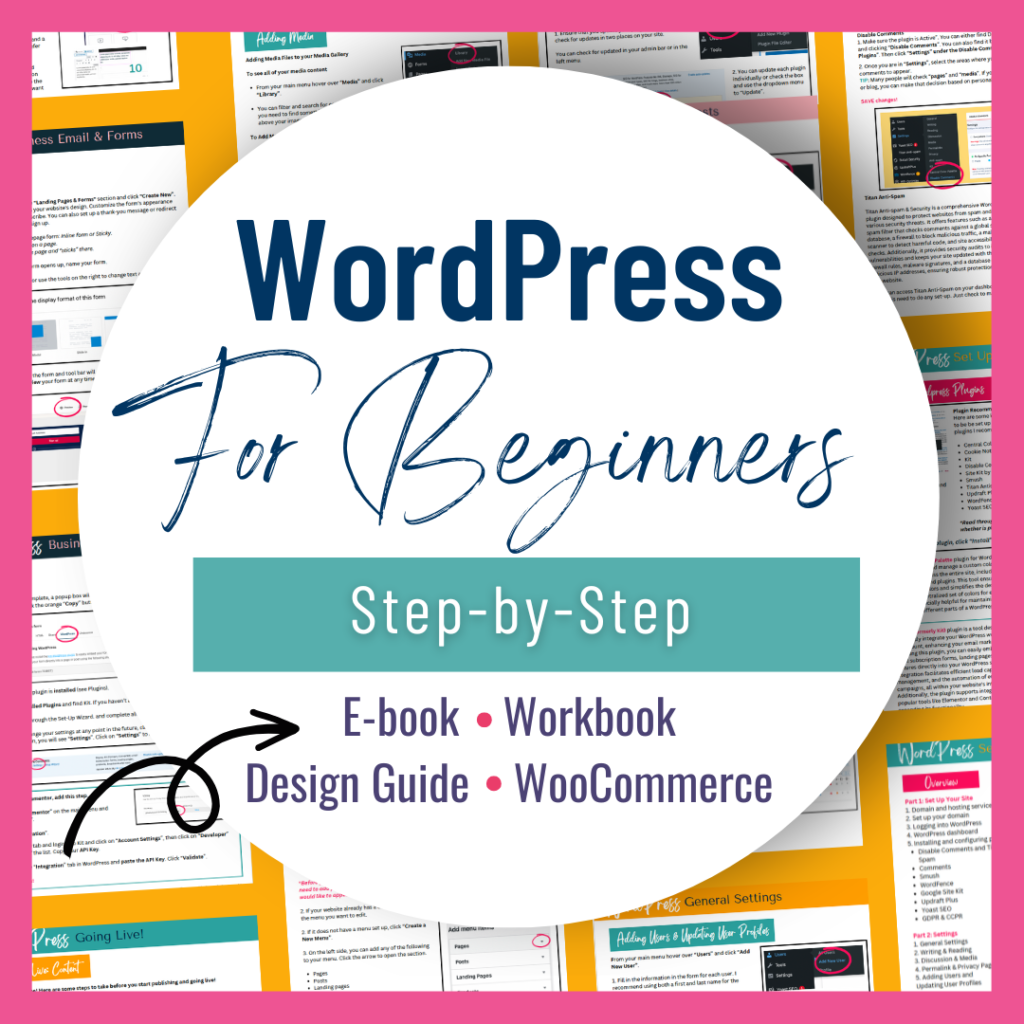
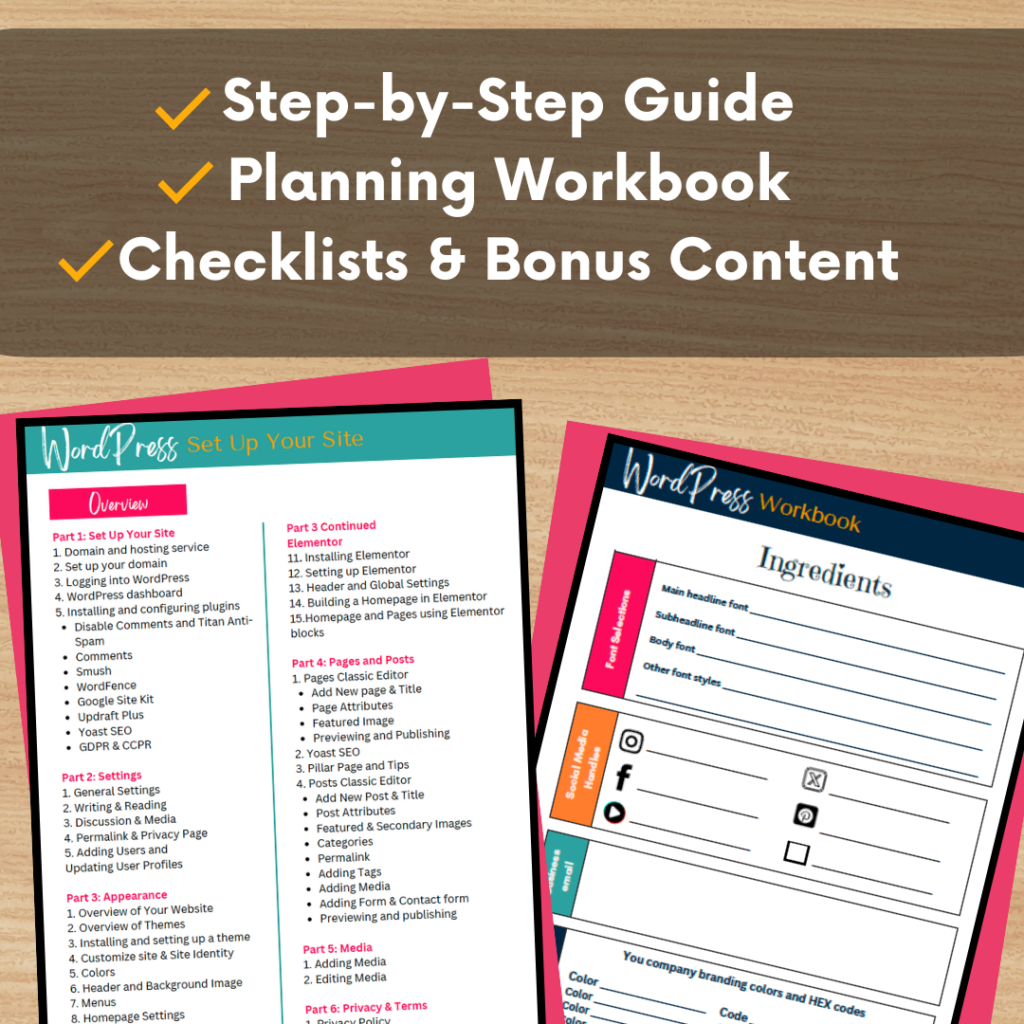
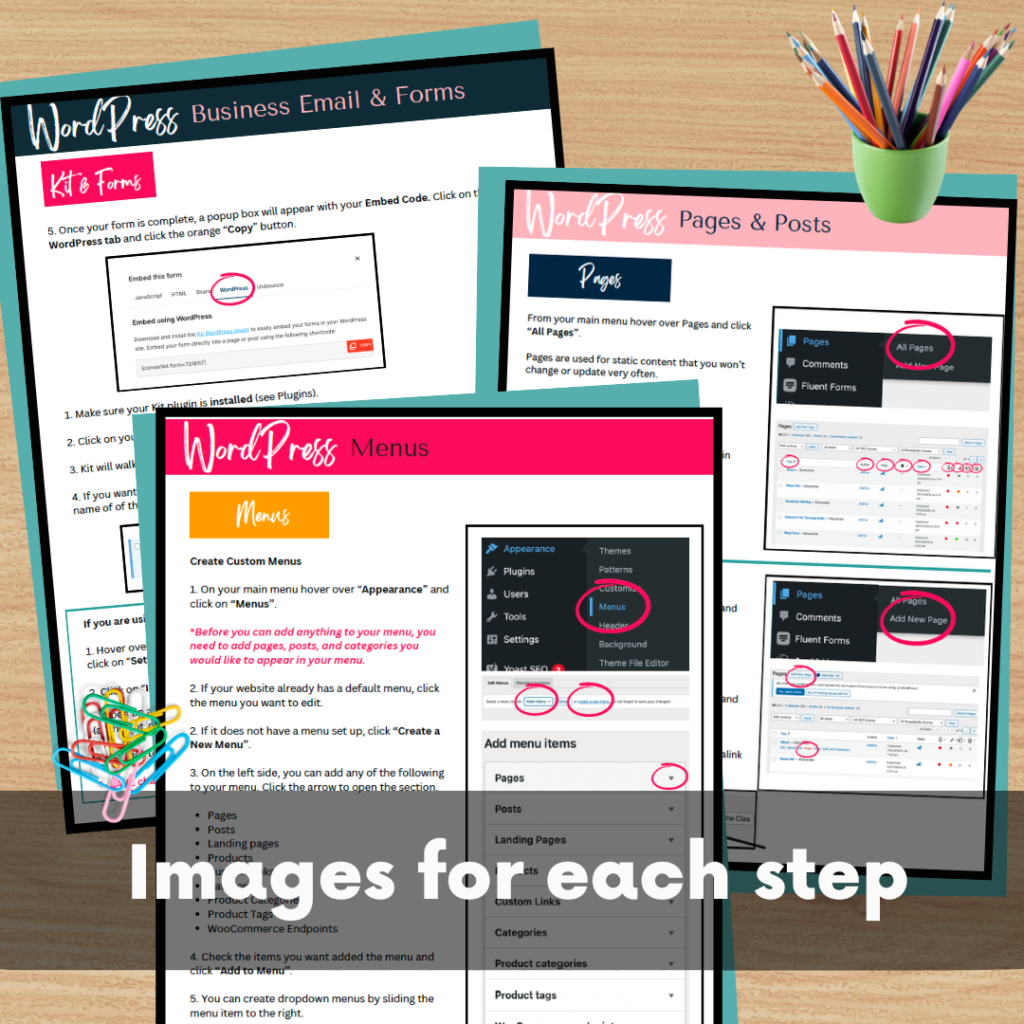
This guide walks you through how to build a WordPress website from scratch, even if you are a total beginner. I am talking step-by-step setup, simple design choices that look polished, and the best plugins to save you time and headaches.
Building your own website as a novice might seem daunting at first, but it’s one of the most rewarding ways to bring your personal or business brand to life online. For starters, creating a site from scratch provides invaluable learning opportunities. It’s a chance to dive into the digital world hands-on, gaining practical skills in design, organization, and communication—all of which are invaluable in today’s tech-driven world. Rather than relying on a developer to bring your vision to life, building your own site allows you to understand the process and make changes as you see fit. When you’re in control, your site can evolve as your goals and needs change.
Moreover, designing your own website empowers you to make it a true reflection of yourself or your brand. While pre-made themes and templates offer convenience, personalizing your site lets you stand out in a crowded online space, showcasing what makes your perspective unique. From crafting each section to choosing the perfect color palette, the creative control you have lets your vision shine through. And with beginner-friendly tools like WordPress, building a site is far easier than it once was, allowing you to focus on creativity rather than code.
Why Building a Website Is Worth It (Especially for Teachers)
A website is more than a cute online “about me.” It is a tool that can make your life easier.
When you have a website, you can:
Share one link with students and families instead of hunting through emails and LMS posts
Organize classroom resources, newsletters, and updates in one place
Build a professional portfolio for evaluations or job searches
Grow a TpT store, blog, or side project with an online home base
Create a space that reflects your voice, teaching style, and brand
And the best part is this: once it is set up, it is yours. You can update it anytime without waiting on anyone else.
Why WordPress Is Easier Than You Think
WordPress is popular for a reason. It is flexible enough for a full business website, but beginner-friendly enough for teachers building their first site.
Here is what makes it a strong choice:
Beginner-friendly setup
Most hosting plans let you install WordPress in one click. From there, you pick a theme and start adding pages.
Easy customization without coding
With drag-and-drop builders like Elementor or Kadence, you can design pages the same way you design slides.
Scales with your goals
You can start simple with a homepage and contact page, then add a blog, store, email list, or membership later.
Teacher-friendly tools
There are plugins for everything from forms to SEO, and many free versions are more than enough.
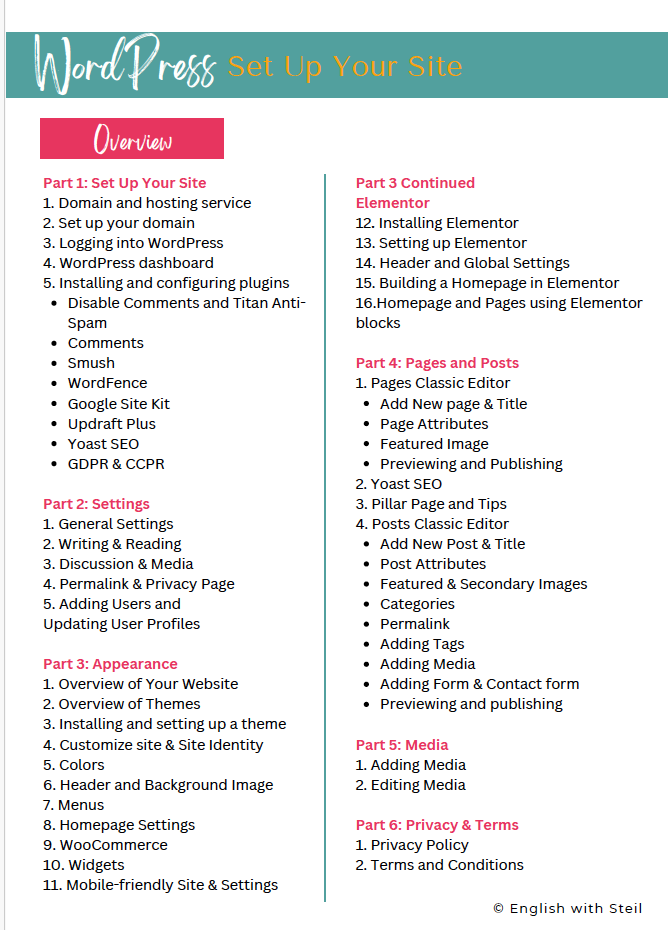
Step 1: Plan Your Website Pages First (This Saves So Much Time)
Before you start picking fonts and colors, map out the basics. Most teacher websites need a few core pages:
Home: Your “welcome” and quick links
About: Who you are and what you teach or create
Blog (optional): Tips, reflections, classroom ideas, or content marketing
Resources (optional): Free downloads, classroom links, or student materials
Contact: A simple form or email link
If you are building a website to support your Teachers Pay Teachers store, consider adding:
Shop or TpT Resources page
A section for “popular resources” and “newest resources”
An email list sign-up for freebies
Planning first keeps your site clean and prevents the “I added 17 tabs and now it is chaos” problem.
Step 2: Focus on User Experience (Because Teachers Hate Clicking Around)
A website should feel easy to use. Teachers and families will leave if they cannot find what they need quickly.
Use these quick UX wins:
Keep your menu simple (4 to 6 items max)
Use clear labels (Resources, Blog, Contact)
Add buttons for your top links (TpT store, freebies, classroom hub)
Make sure your homepage tells visitors what to do next
Think: “If someone lands here for the first time, can they figure it out in 10 seconds?”
Step 3: Make It Mobile-Friendly From Day One
Many visitors will view your site on a phone, especially parents and busy teachers.
To make your site mobile-friendly:
Choose a responsive theme
Preview your pages on mobile inside WordPress
Use larger font sizes and spacing
Avoid tiny buttons and crowded layouts
Mobile matters for SEO too, so this is not just a design preference. It is part of building a site that actually works.
Here are some tips to streamline your website-building process and avoid common pitfalls:
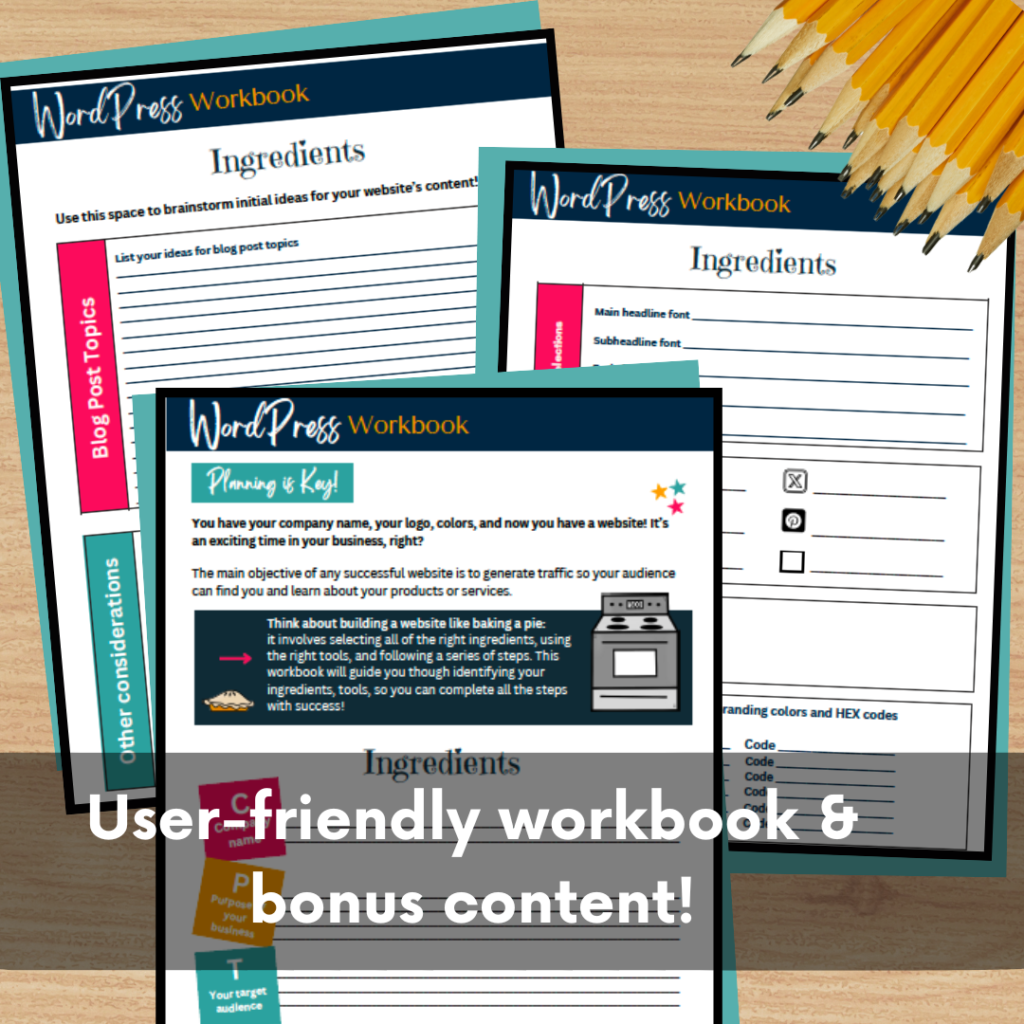
- Plan Your Content: Map out the pages you’ll need, like Home, About, Blog, Services, and Contact. Start with a content outline to stay organized.
- Focus on User Experience: Think about what your visitors need. A clear navigation bar, responsive design, and quick load times improve user experience and keep people on your site.
- Start Small: You don’t need to launch with every feature. Focus on the essentials, and remember, you can always add more as your site evolves.
- Optimize for Mobile: With a growing number of users accessing sites via mobile, make sure your site looks and functions well on smaller screens.
- Page Builders: If you’re using WordPress, page builder plugins like Elementor or Kadence allow you to create custom layouts with drag-and-drop ease.
- SEO Plugins: Optimize your site for search engines using SEO plugins like Yoast or Rank Math, which guide you on keywords, readability, and metadata.
- Image Optimization Tools: Large images can slow down your site. Use plugins like Smush or online tools like TinyPNG to compress images without losing quality.
- Security Plugins: Keep your site secure with plugins like Wordfence or Sucuri. These tools provide firewalls, malware scanning, and other essential security features.
- Analytics Tools: Integrate Google Analytics or use plugins like MonsterInsights to track your visitors’ behavior and see what’s working on your site.
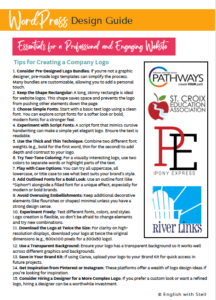
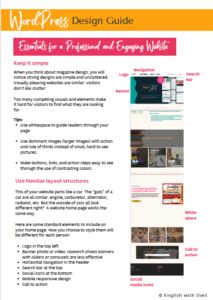
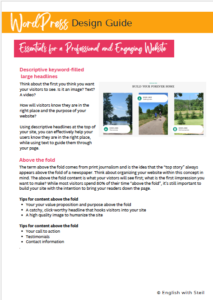
Simple Design Tips That Make Your Site Look Professional
You do not need complicated design. You need consistency.
Keep the layout clean
White space makes your site feel modern and easier to read.
Use one color palette
Pick a main color and one accent color. Save the rainbow energy for your classroom posters.
Stick to two fonts
One for headings, one for body text. That is it.
Use high-quality images
Choose images that match your subject or brand. Free photo sites like Unsplash and Pexels help, but even better is using a few real photos of you and your classroom space (if you are comfortable).
Add clear calls to action
Use buttons like:
Visit My TpT Store
Grab a Freebie
Read the Blog
Contact Me
If you do nothing else, do this. CTAs turn a “pretty site” into a functional one.
Plugins Every New Site Needs
Must-Have Tools and Plugins for New WordPress Sites
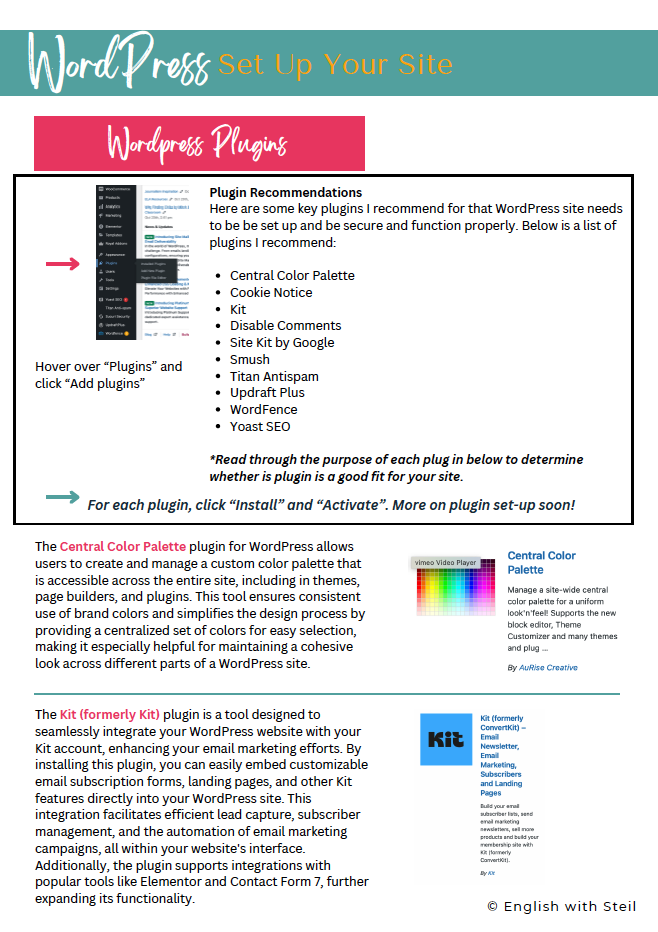
Plugins are where WordPress becomes magical, but new users often install way too many. Start with a solid foundation.
Here are the most useful WordPress plugins for beginners:
SEO Plugin
Yoast SEO or Rank Math
Helps your posts show up on Google when teachers search for resources.
Security
Wordfence
Adds protection and basic monitoring.
Backups
UpdraftPlus
Because nothing is worse than losing your site.
Forms
WPForms
Perfect for contact pages and freebie sign-ups.
Image Optimization
Smush
Compresses images so your site loads faster.
Page Builder
Elementor or Kadence
Drag-and-drop design without coding.
Analytics
MonsterInsights
Connects your site to Google Analytics so you can see what is working.
Selling Products
WooCommerce (only if you sell directly from your site)
If your goal is to grow a TpT store, focus first on speed, readability, and SEO. Those three things help you get traffic that converts.
A Teacher-Friendly Workflow to Avoid Overwhelm
If you are busy (and you are), here is the simplest way to build your site without spiraling:
Create your pages (Home, About, Contact)
Choose a theme and basic colors
Add your CTAs and your TpT links
Install only essential plugins
Publish, then improve slowly
You do not need a perfect site. You need a finished site.
Final Thoughts
Building a website from scratch might feel intimidating, but it is one of those projects that gets easier the moment you start. WordPress gives you the flexibility to build something simple now and expand later as your goals grow.
Whether you are creating a classroom hub, building a teacher blog, or creating a professional home base for your TpT store, a website helps you stay organized, look polished, and share your work with confidence.
Start small, keep it simple, and build as you go. Your future self will be very glad you did.
Check Out These Resources from My Fellow Teacher Authors
If you are building a teacher website, blog, or online resource hub, these teacher-created guides pair perfectly with WordPress and can help you grow your digital presence without overwhelm:
How to Start a Teacher Blog (Without Burning Out) by Room 213
A realistic look at blogging as an educator, with tips for consistency, boundaries, and building content that actually helps teachers.Teacher Branding 101: Creating a Consistent Online Presence by Room 213
Helpful guidance for teachers who want their website, TpT store, and social media to feel connected and intentional.SEO for Teachers: How Educators Can Get Found Online by Secondary Sara
A teacher-friendly introduction to SEO that explains keywords, blog traffic, and search visibility in simple terms.How to Use Pinterest to Grow a Teacher Blog or TpT Store by Bespoke ELA
Practical Pinterest strategies for teachers who want more eyes on their content without spending hours online.Building a Simple Email List as a Teacher Creator by Ditch That Textbook
An approachable guide to starting an email list that supports your blog, resources, or classroom communication.Digital Organization Tips for Teacher Entrepreneurs by The Classroom Sparrow
Smart systems for keeping website files, blog posts, freebies, and digital products organized and stress-free.